# 多帳戶操作教程

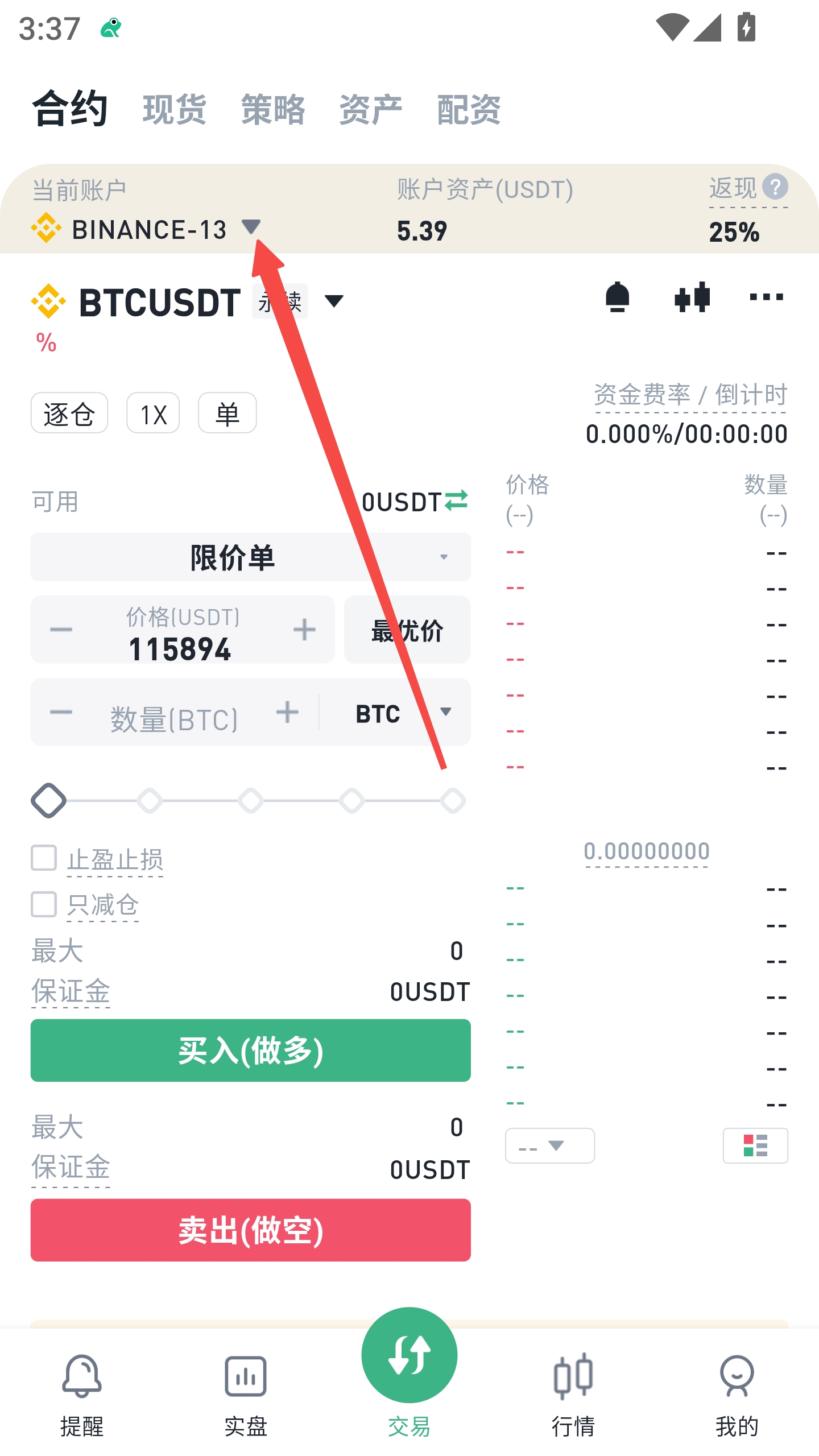
### 1. 進入帳戶選擇

在交易介面，點擊左上角的 **【當前帳戶】**，即可進入帳戶選擇介面。

<figure><img src="/files/iJeOqq2xpiUILiuiYQ9m" alt="" width="375"><figcaption></figcaption></figure>

***

### 2. 單帳戶 / 多帳戶切換

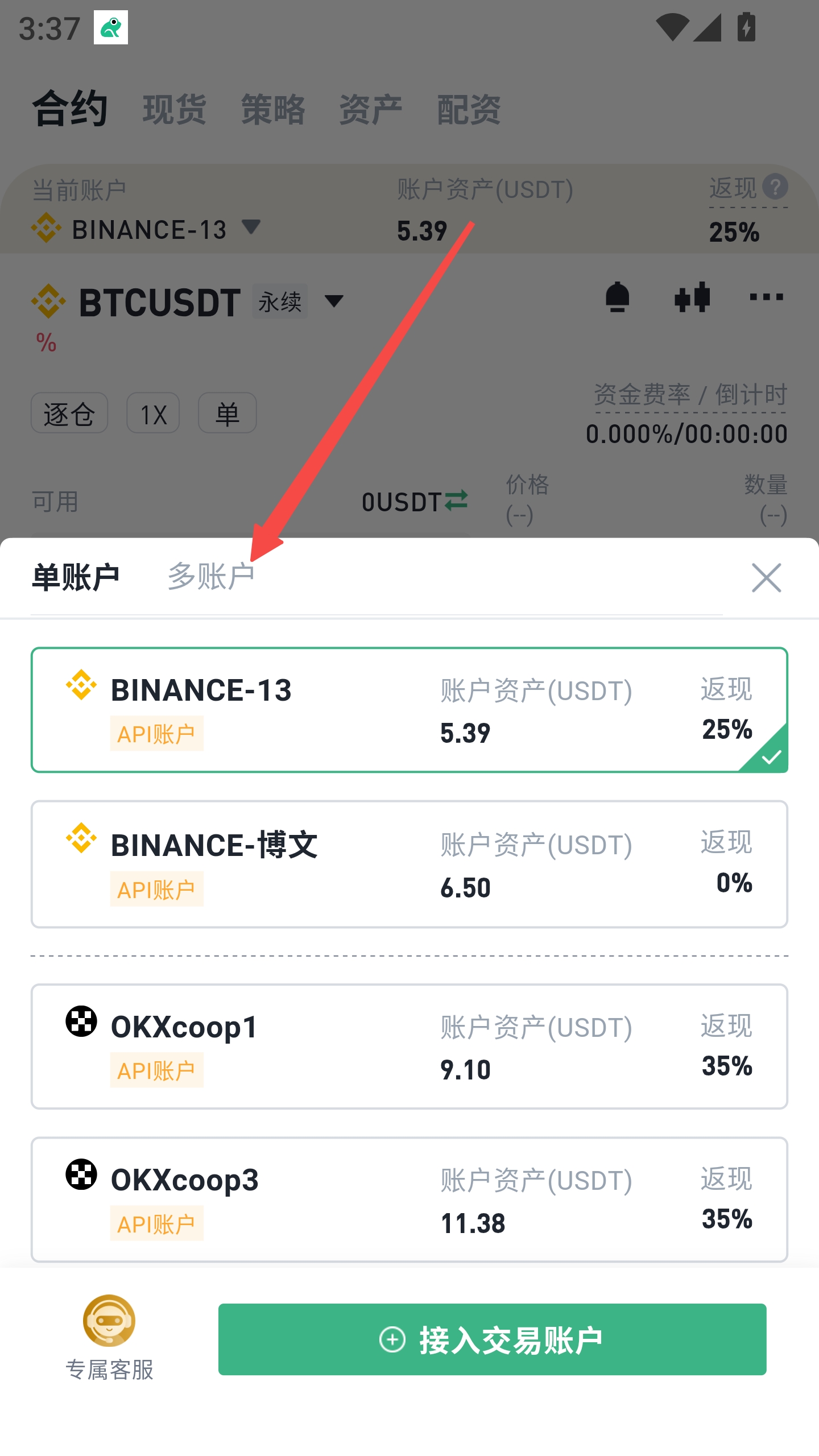
在彈出的帳戶選擇視窗中，可以看到 **【單帳戶】** 和 **【多帳戶】** 兩個選項：

**單帳戶：**\
直接選擇某一個 API 帳戶進行交易。

**多帳戶：**\
可對多個帳戶進行分組與統一操作。

<figure><img src="/files/zE5YPkZvEYTnihunQ0M9" alt="" width="375"><figcaption></figcaption></figure>

***

### 3. 進入多帳戶模式

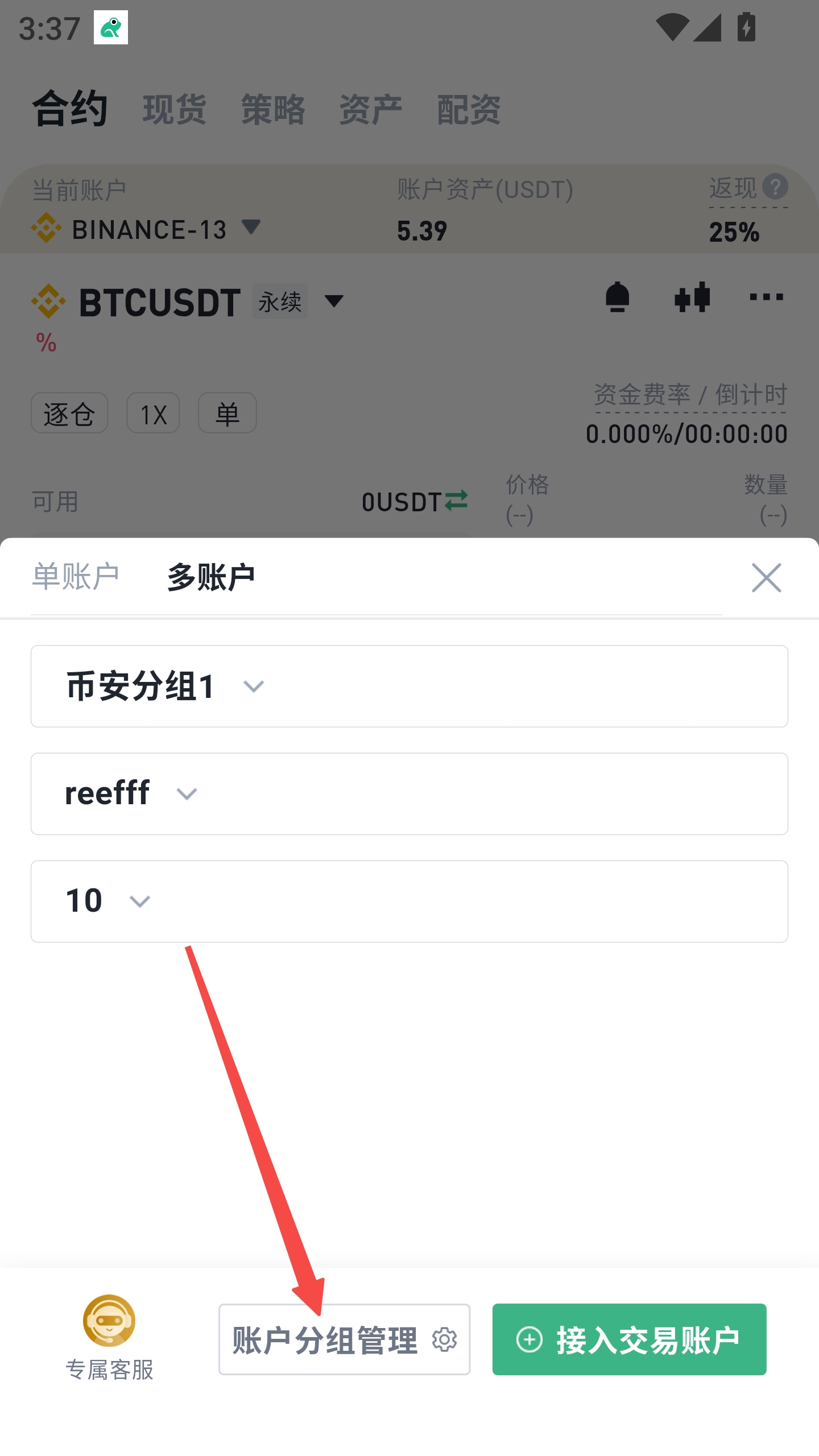
切換至 **【多帳戶】**，即可查看分組資訊。

若尚未建立分組，需先進行 **【帳戶分組管理】**。

<figure><img src="/files/OsDUI0OMfxWZHwP2rc6p" alt="" width="375"><figcaption></figcaption></figure>

***

### 4. 管理帳戶分組

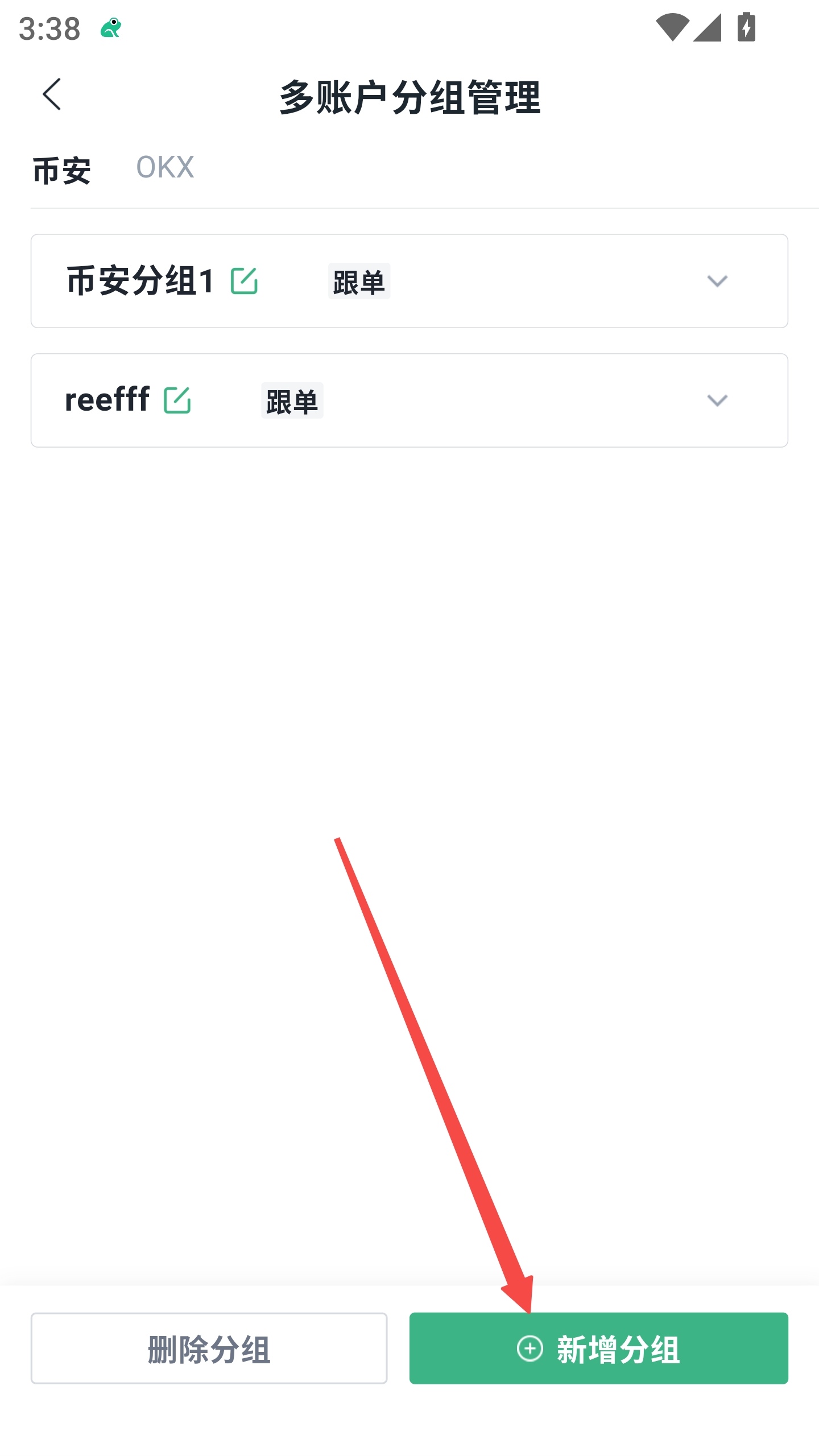
點擊 **【帳戶分組管理】**，進入分組管理頁面。

可進行以下操作：

* 查看已有分組
* 刪除分組
* 點擊 **【新增分組】** 建立新分組

<figure><img src="/files/LfxXjpKZQCb4jal6tSsi" alt="" width="375"><figcaption></figcaption></figure>

***

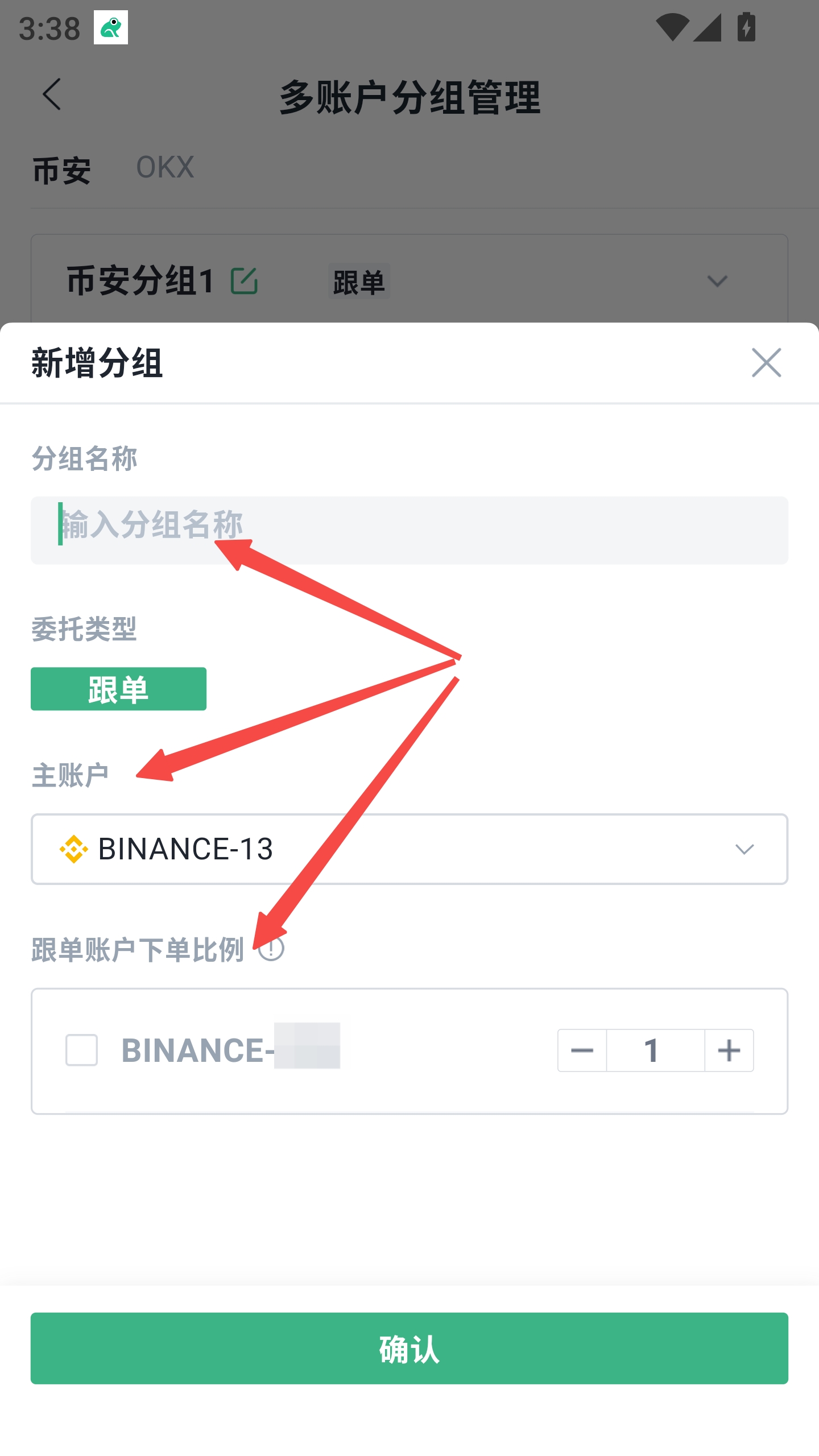
### 5. 新增分組

在 **【新增分組】** 中，填寫以下內容：

* **分組名稱：** 自訂名稱，方便識別
* **委託類型：** 跟單
* **主帳戶：** 選擇分組中的主控帳戶
* **跟單帳戶下單比例：** 設定每個跟單帳戶相對於主帳戶的下單比例

設定完成後，點擊 **【確認】**。

<figure><img src="/files/fvR4DR1wqB1cRlLsXa9R" alt="" width="375"><figcaption></figcaption></figure>

***

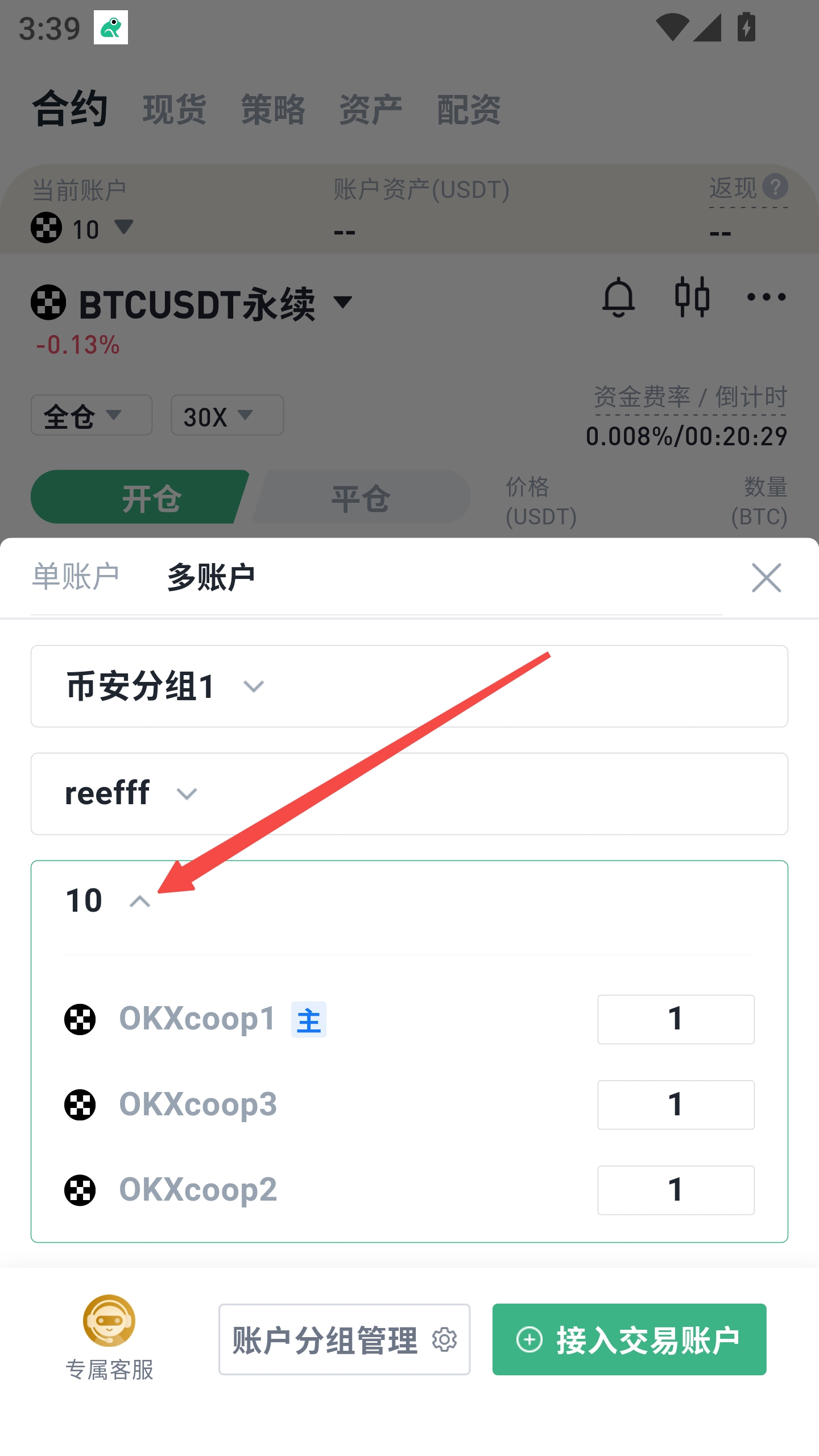
### 6. 使用多帳戶分組

建立完成後，可在多帳戶介面選擇對應分組。

例如：

* 主帳戶：`OKXcoop1`
* 跟單帳戶：`OKXcoop3`、`OKXcoop2`
* 跟單比例：均為 `1`

<figure><img src="/files/DReOG8h8L7ZdNLAMrjOU" alt="" width="375"><figcaption></figcaption></figure>

***

### 7. 查看委託與持倉

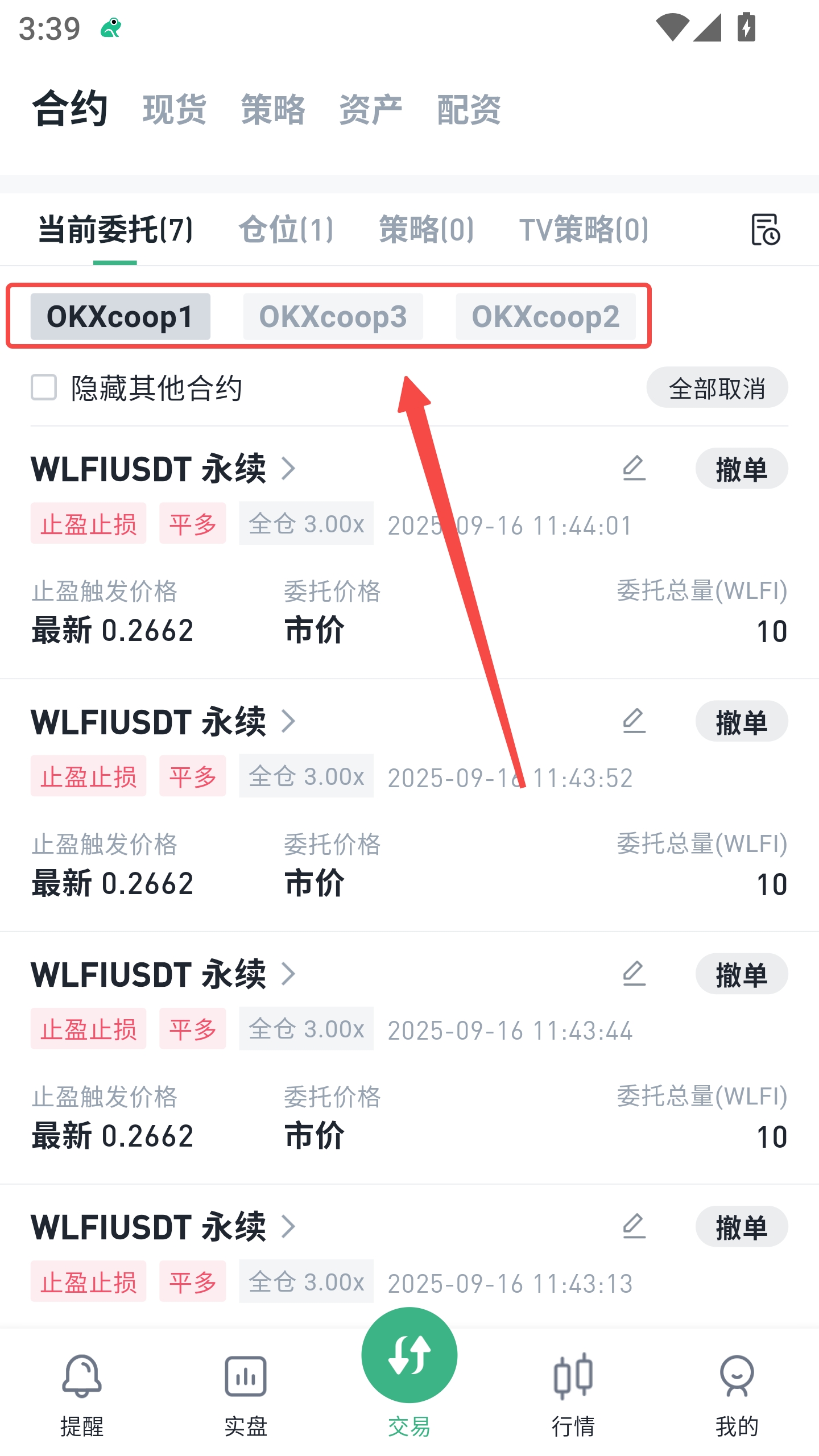
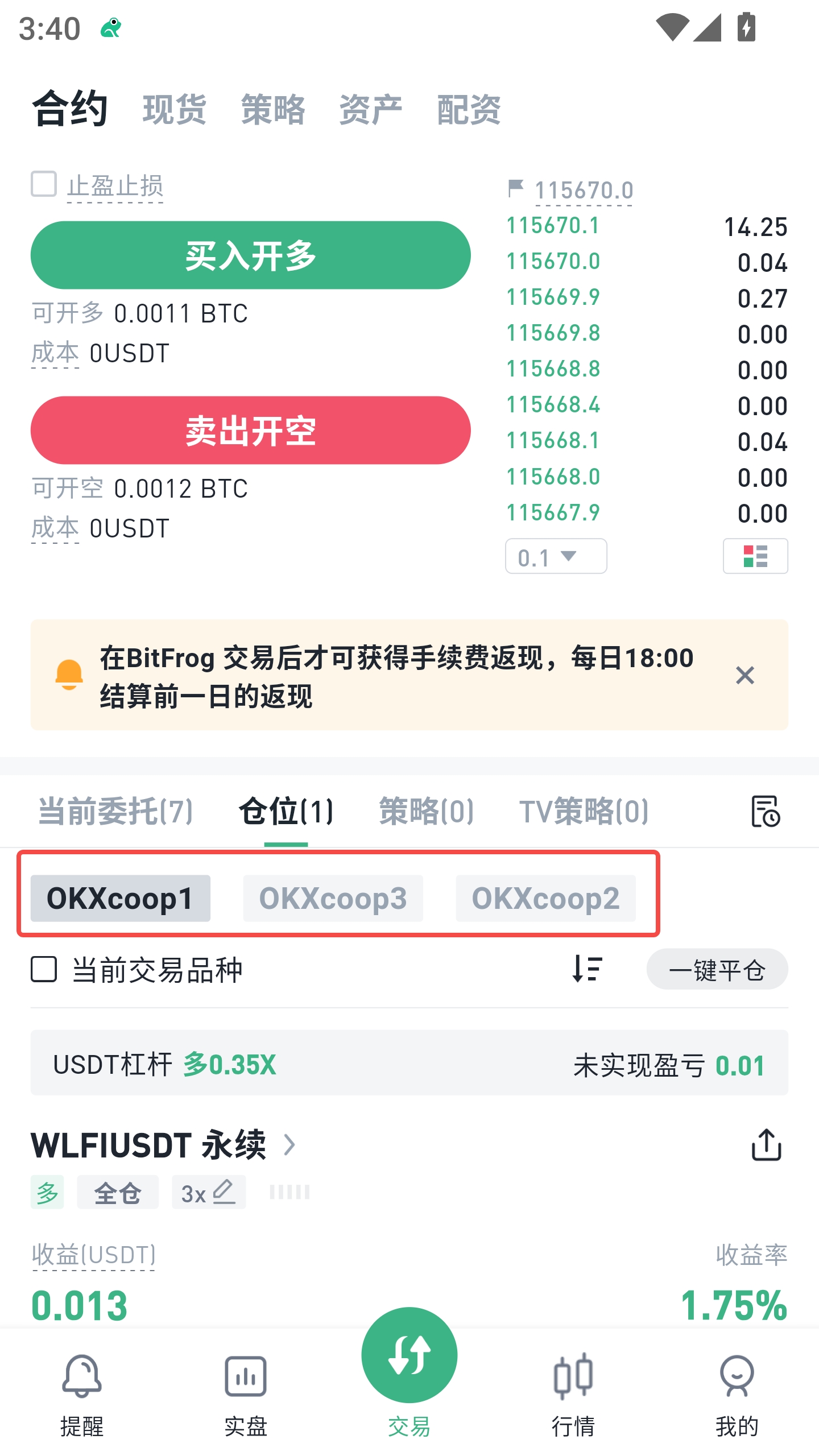
分組啟用後，主帳戶的操作將自動同步至跟單帳戶。

#### 委託列表

可查看各跟單帳戶的同步委託資訊。

#### 持倉頁面

可依帳戶分別查看目前持倉狀況。

<div><figure><img src="/files/wAHJI1ZydOCo3cTXnSFS" alt=""><figcaption></figcaption></figure> <figure><img src="/files/G15gygAgQ4ato7woTDkH" alt=""><figcaption></figcaption></figure></div>

***

### 功能說明

**單帳戶模式：**\
僅操作單一帳戶。

**多帳戶模式：**\
透過分組實現主帳戶操作，其餘帳戶自動跟單。

**分組管理：**\
支援新增、刪除及修改分組，靈活配置跟單比例。


---

# Agent Instructions: Querying This Documentation

If you need additional information that is not directly available in this page, you can query the documentation dynamically by asking a question.

Perform an HTTP GET request on the current page URL with the `ask` query parameter:

```
GET https://docs.bitfrog.io/zh-tw/jiao-yi-zhi-nan/jiao-yi-fan-yong/duo-zhang-hu-cao-zuo-jiao-cheng.md?ask=<question>
```

The question should be specific, self-contained, and written in natural language.
The response will contain a direct answer to the question and relevant excerpts and sources from the documentation.

Use this mechanism when the answer is not explicitly present in the current page, you need clarification or additional context, or you want to retrieve related documentation sections.