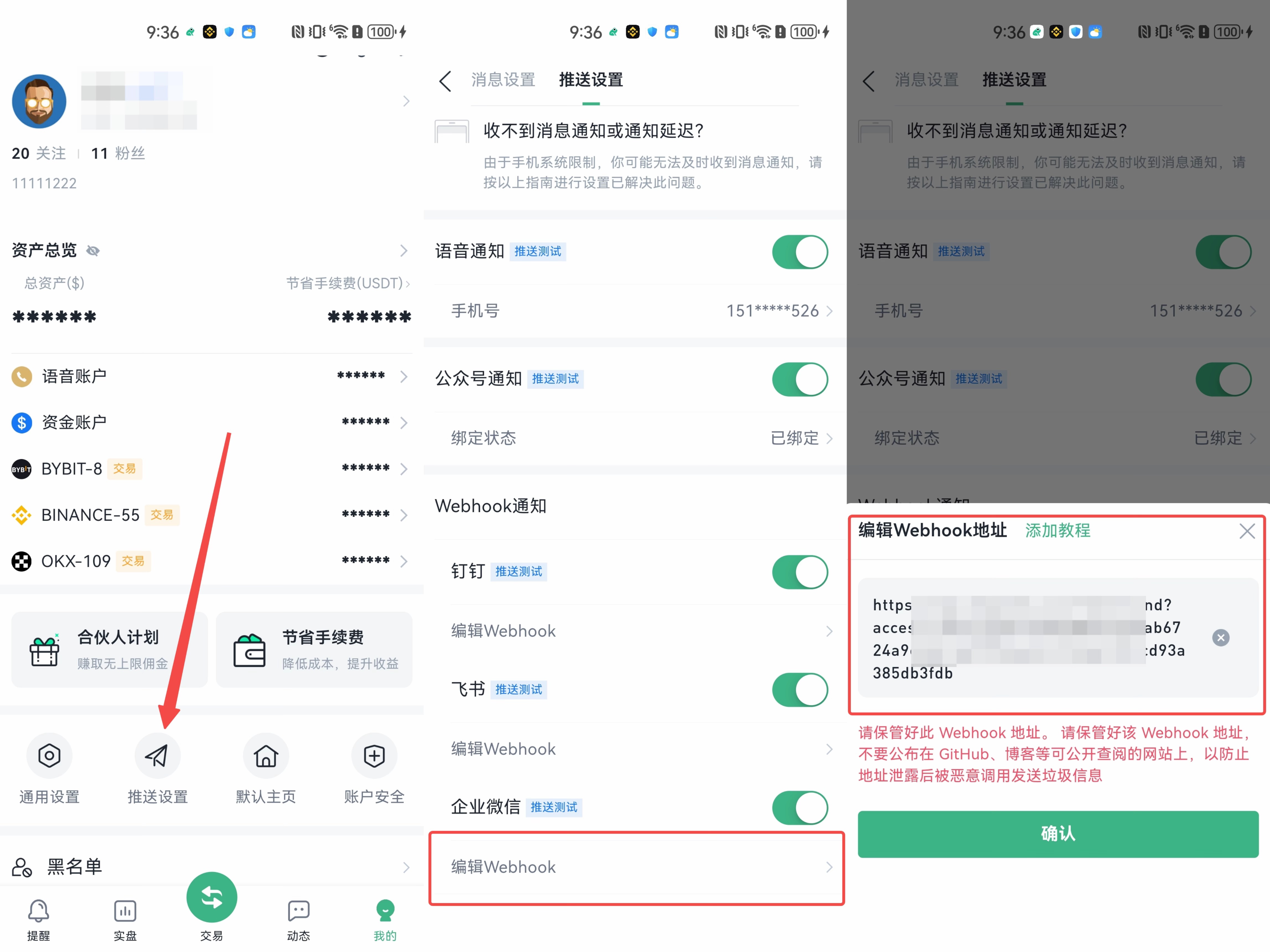
# Webhook 通知設定教學

1. ### [**釘釘群 Webhook 建立**](#yi-ding-ding-qun-webhook-chuang-jian)
2. ### [**飛書群 Webhook 建立**](#er-fei-shu-qun-webhook-chuang-jian)
3. ### [**企業微信群 Webhook 建立**](#san-qi-ye-wei-xin-qun-webhook-chuang-jian)

## 一、釘釘群 Webhook 建立

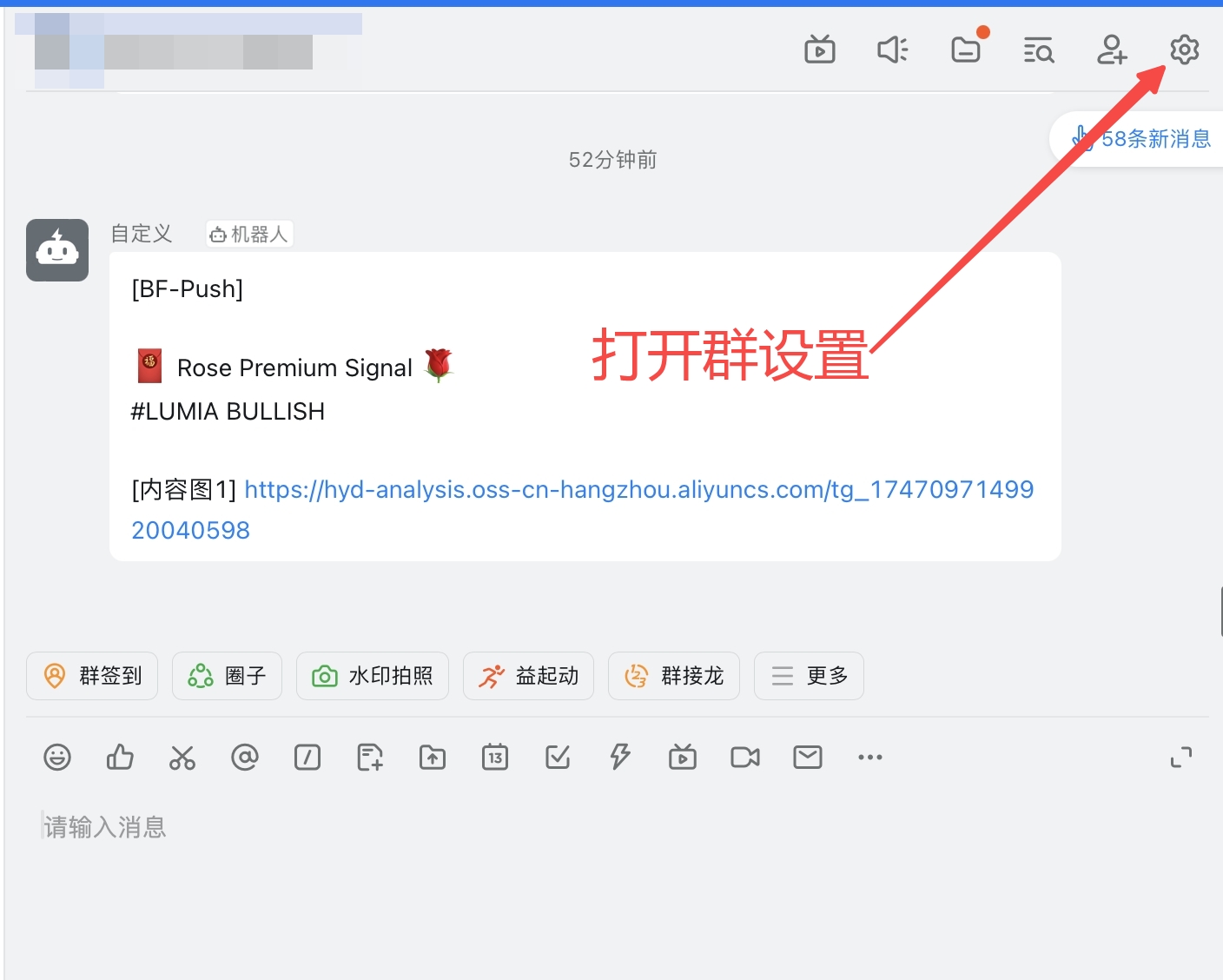
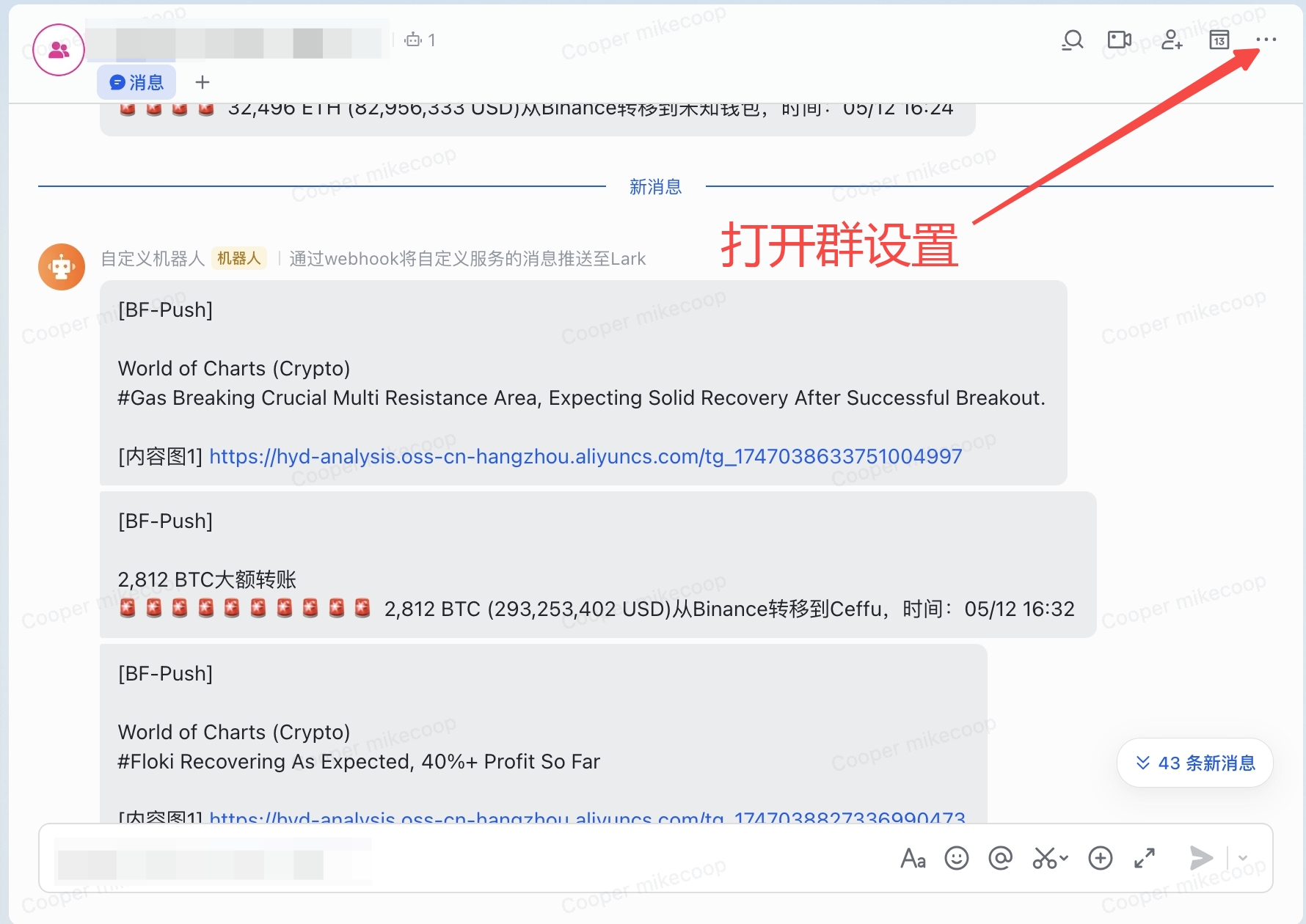
* 打開要新增機器人的群組，點擊右上角的群組設定。

  <figure><img src="/files/tZGGG6YRcLe1gS31JiaC" alt="" width="375"><figcaption></figcaption></figure>

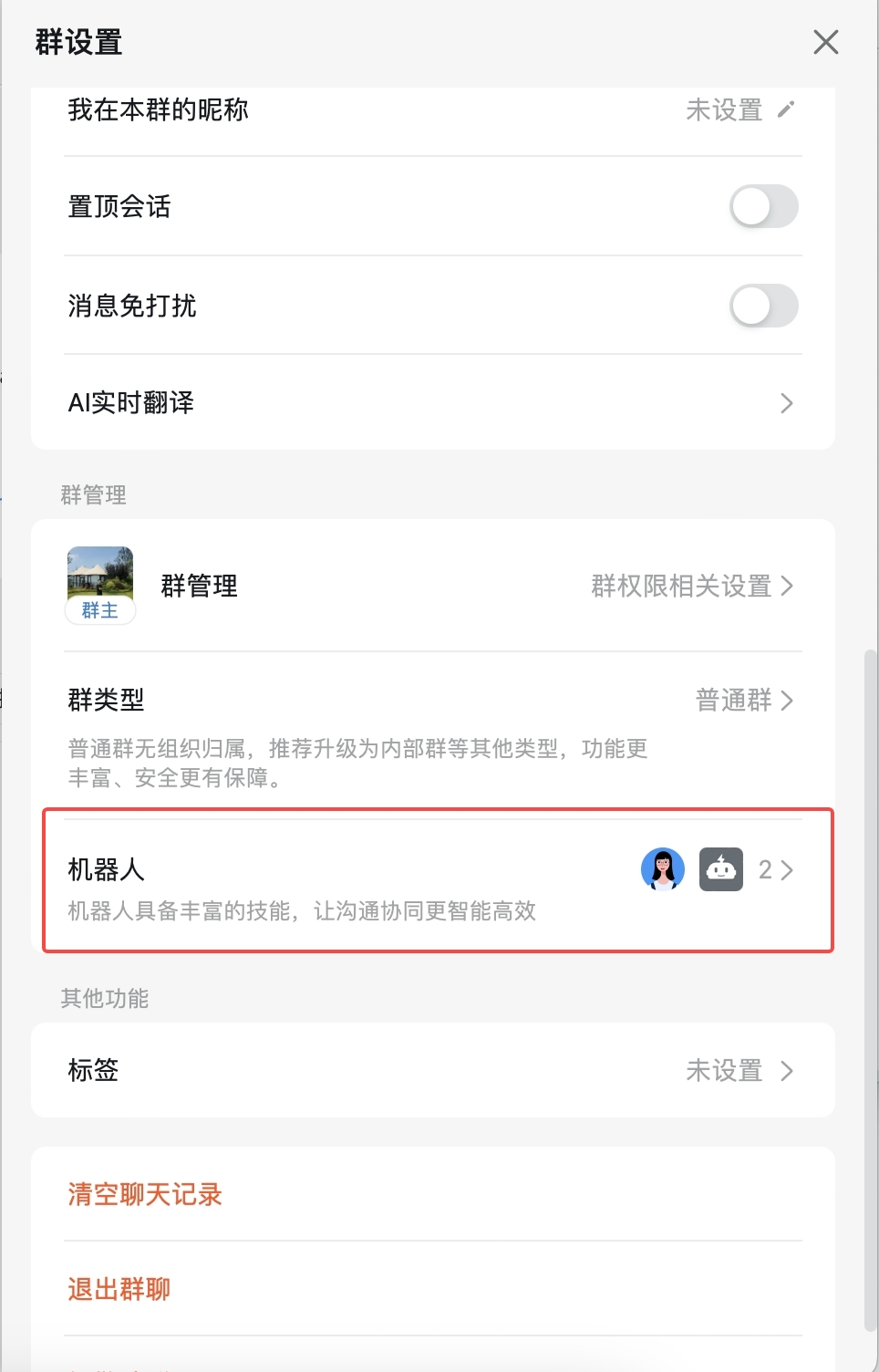
* 點擊「機器人」。

  <figure><img src="/files/hnCupEuPiMj6lwjFyhgp" alt="" width="375"><figcaption></figcaption></figure>

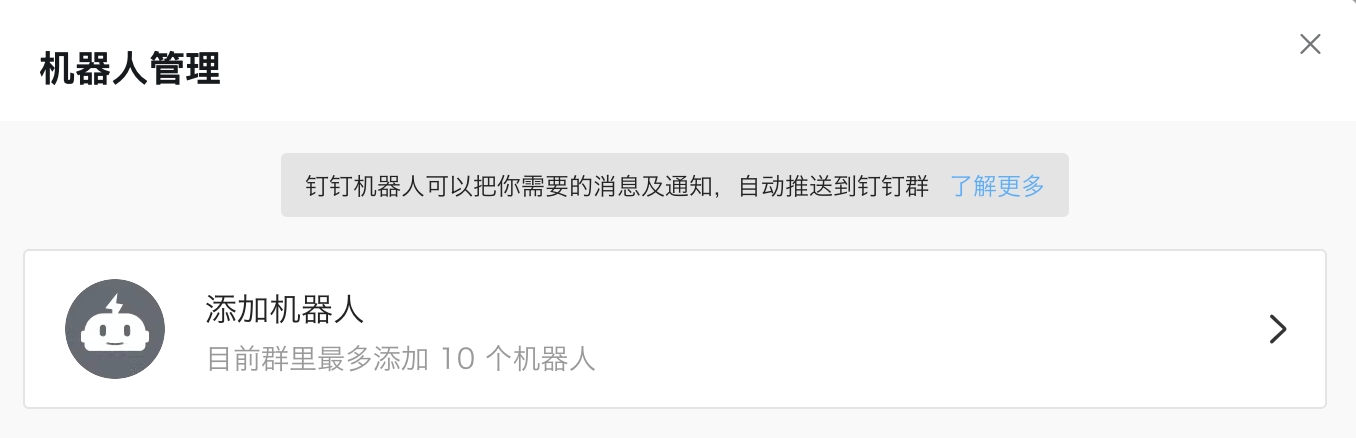
* 點擊「新增機器人」

  <figure><img src="/files/SIaxRz8OMNFAqfy67gk0" alt="" width="375"><figcaption></figcaption></figure>

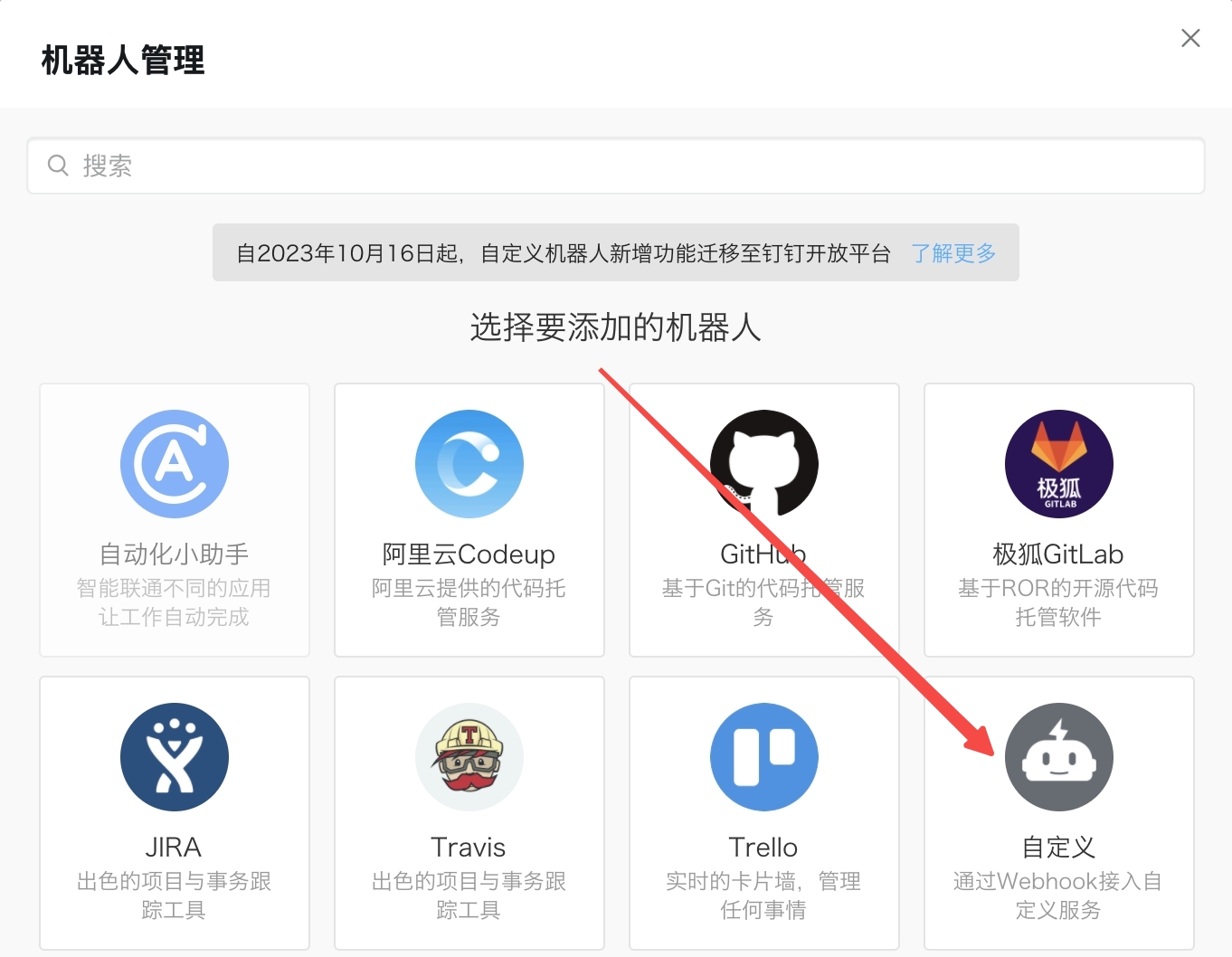
* 選擇「新增自訂機器人」

  <figure><img src="/files/AY5B4AEdMwt2DParjopr" alt="" width="375"><figcaption></figcaption></figure>

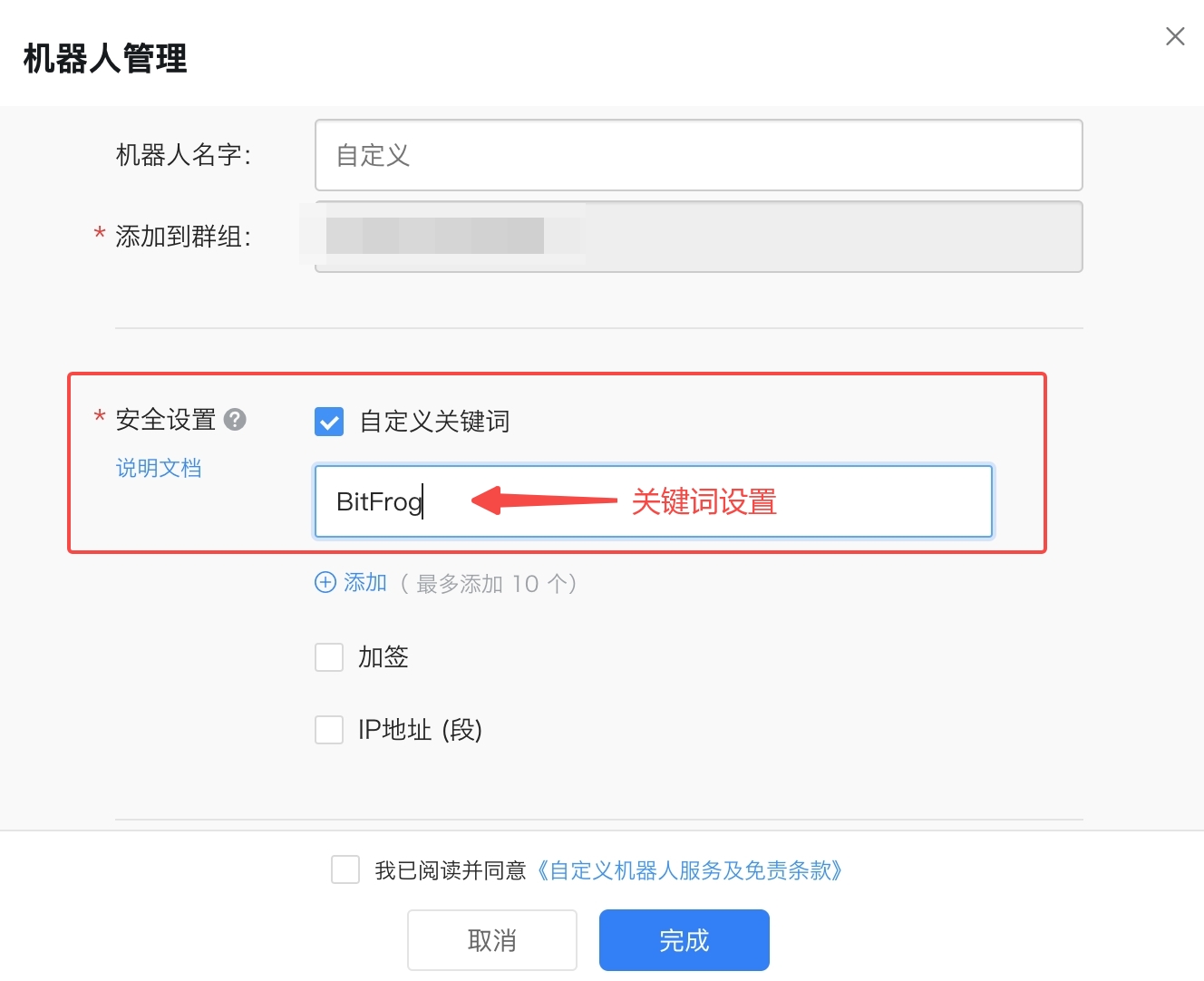
* 編輯機器人頭像和名稱。，安全設定選擇「自訂關鍵字」，填寫關鍵字\[BitFrog]

  <figure><img src="/files/4tgHmVSoIdd9zi1WsVxx" alt="" width="375"><figcaption></figcaption></figure>

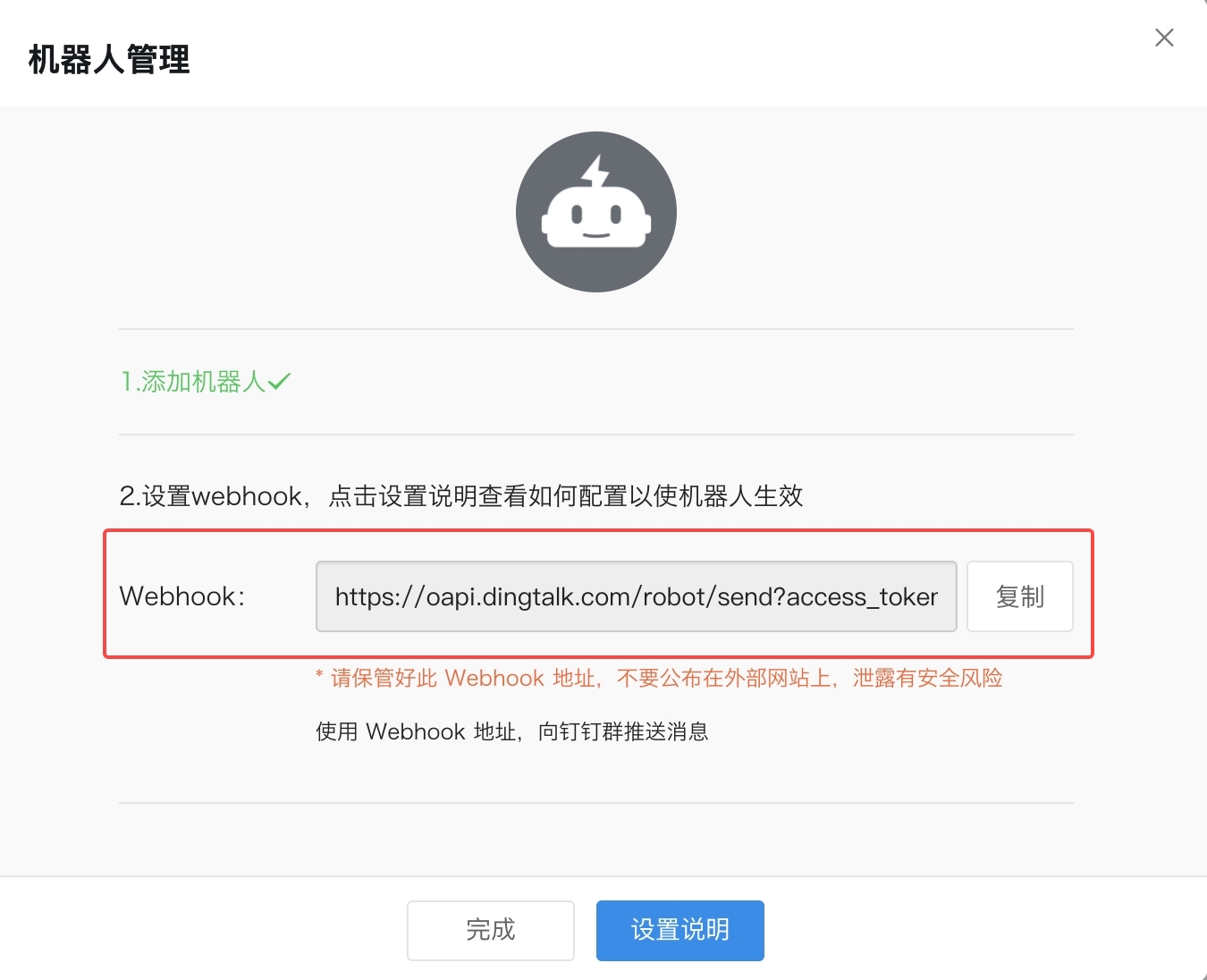
* 複製生成的機器人 Webhook 位址。

  <figure><img src="/files/qt68fjg9d7PmfFtSdQKo" alt="" width="375"><figcaption></figcaption></figure>

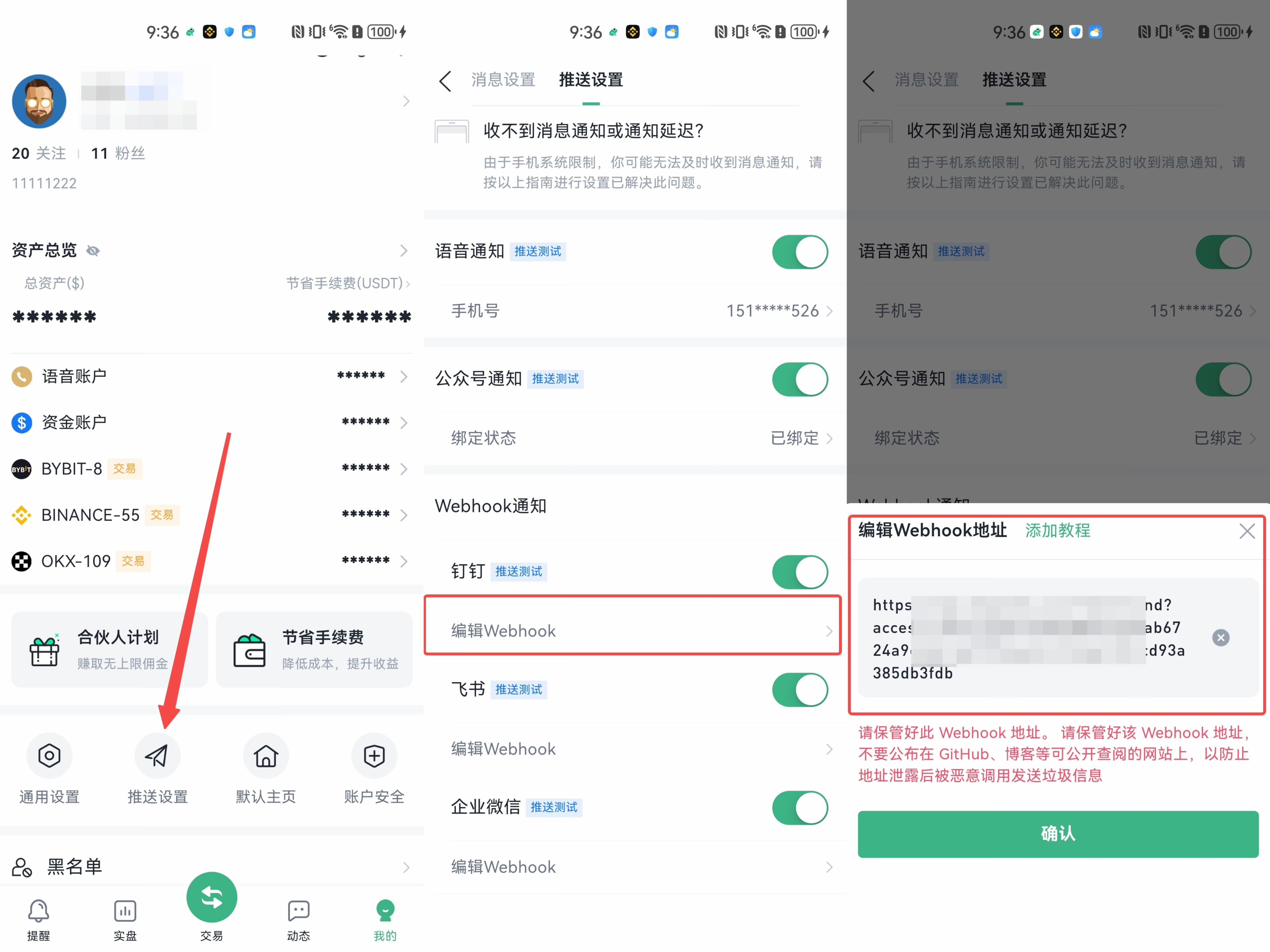
* 將 Webhook 位址複製到 BitFrog 推送設定中即可完成設定。

  <figure><img src="/files/upIN0epqWWrlNEoohMQQ" alt="" width="375"><figcaption></figcaption></figure>

***

## 二、飛書群 Webhook 建立

**請在 PC 端進行操作，手機端無法新增自訂機器人**

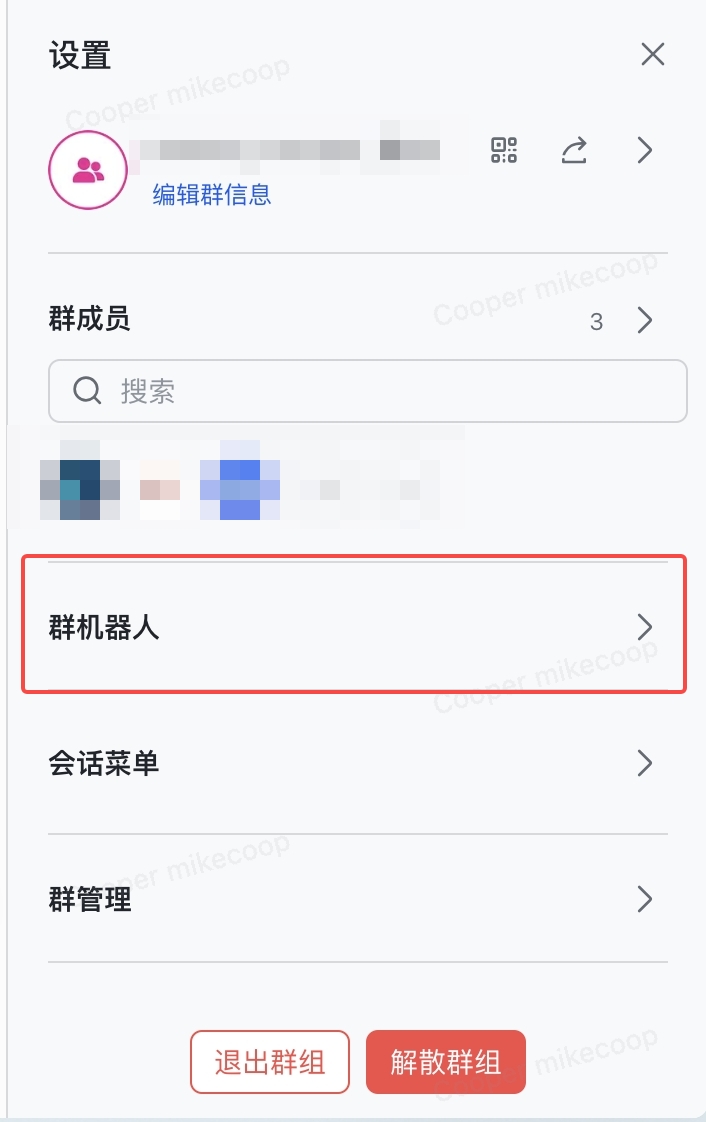
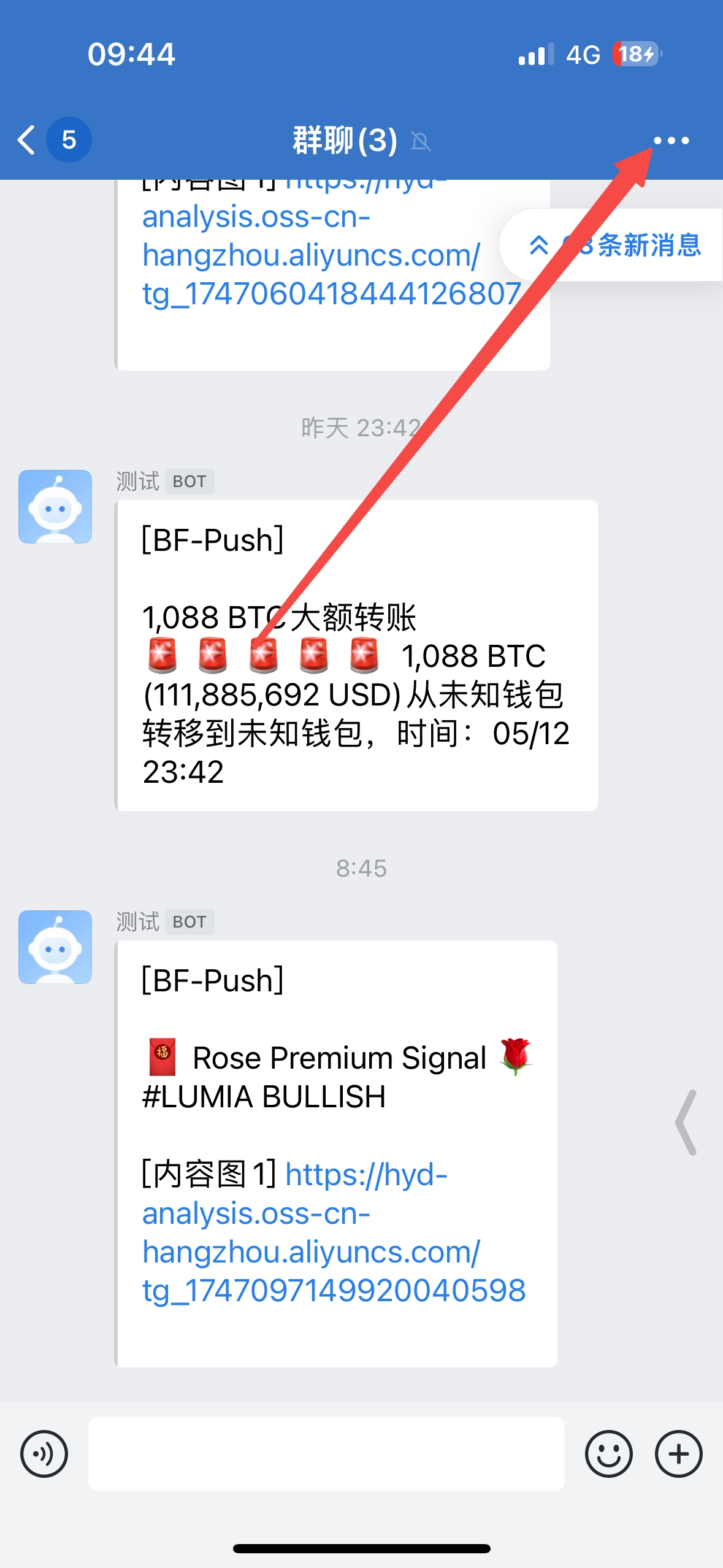
* 打開要新增機器人的群組，點擊右上角群組設定

  <figure><img src="/files/vLu7ztMExUthP0DWNt5d" alt="" width="375"><figcaption></figcaption></figure>

* 點擊「群機器人」

  <figure><img src="/files/0KtrAfXlxDOwq8OWBOoX" alt="" width="353"><figcaption></figcaption></figure>

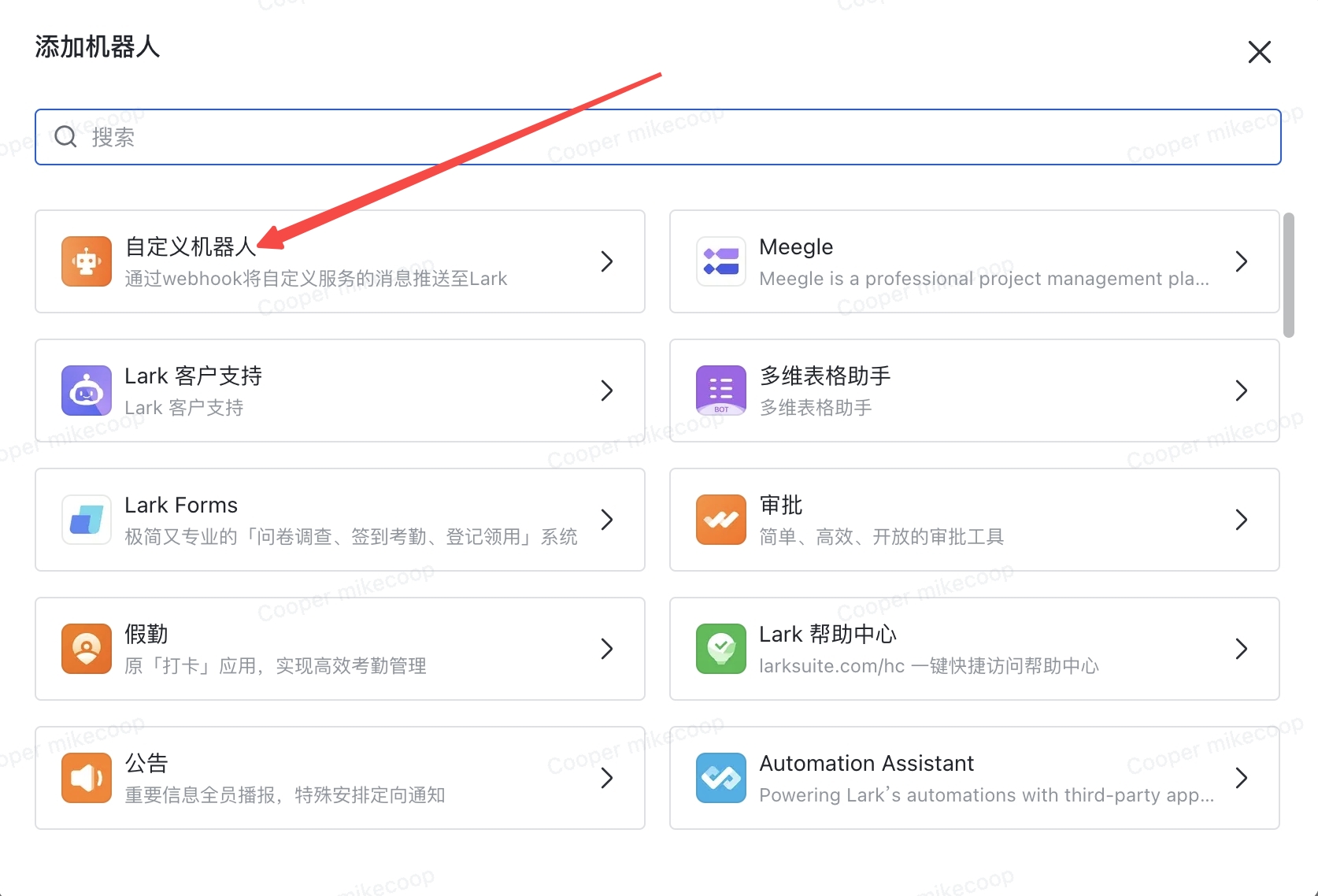
* 選擇「自訂機器人」

  <figure><img src="/files/kkVsH5fVoL80GFPqXNcF" alt="" width="375"><figcaption></figcaption></figure>

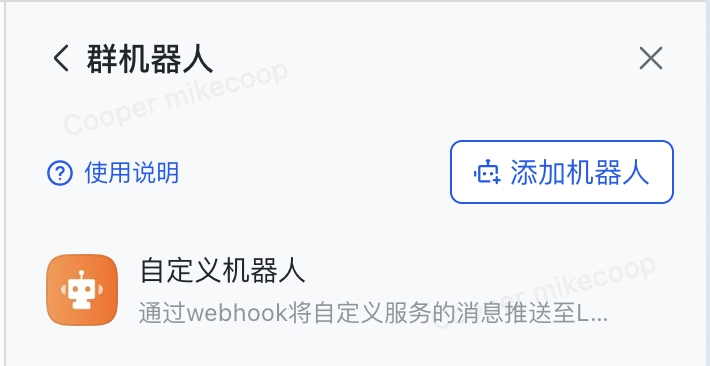
* 點擊「新增機器人」

  <figure><img src="/files/2wTdwicePZJb9MF21SiA" alt="" width="355"><figcaption></figcaption></figure>

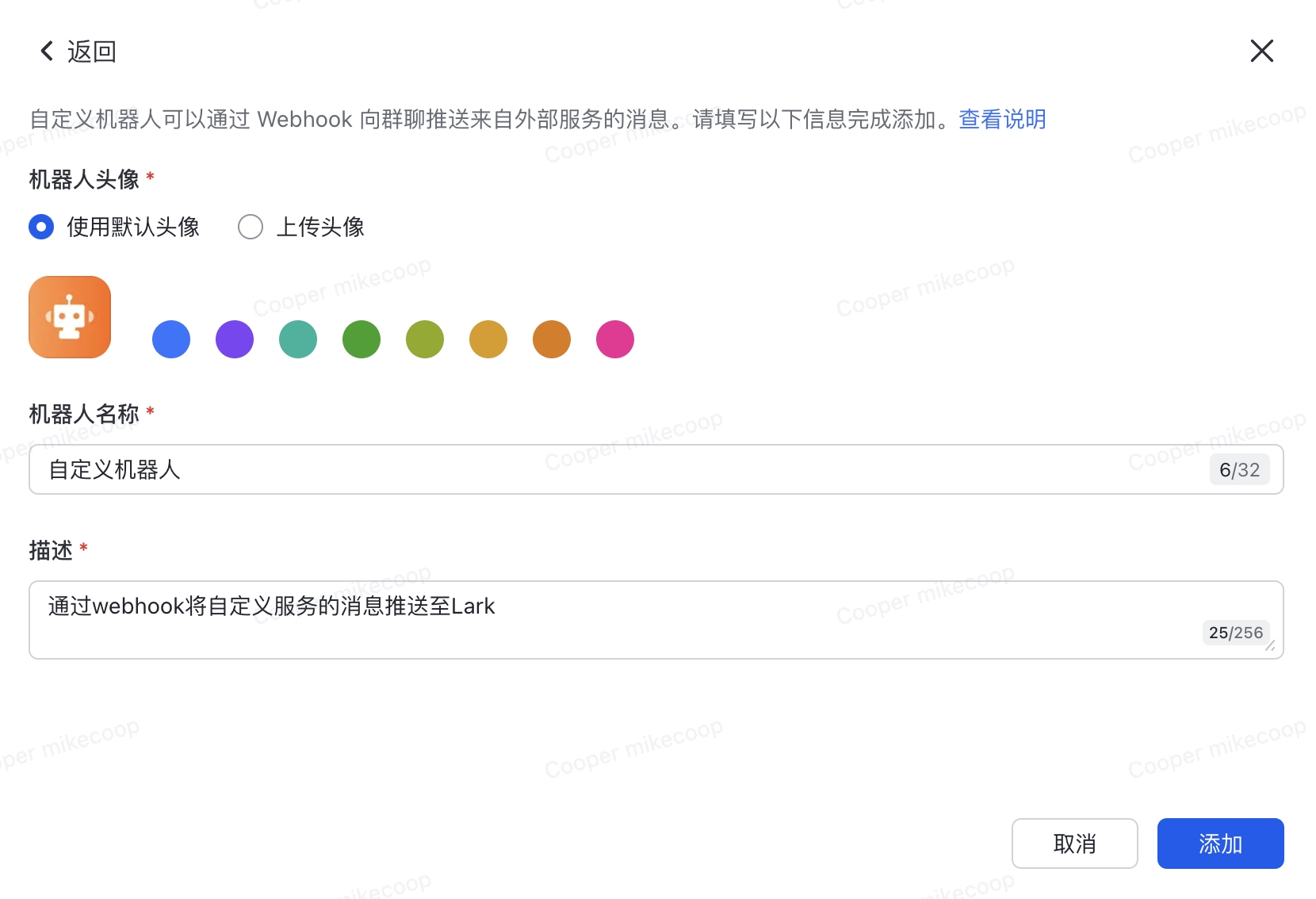
* 設定群暱稱等資訊

  <figure><img src="/files/OobB1L7FPJqoqhnYZuA0" alt="" width="375"><figcaption></figcaption></figure>

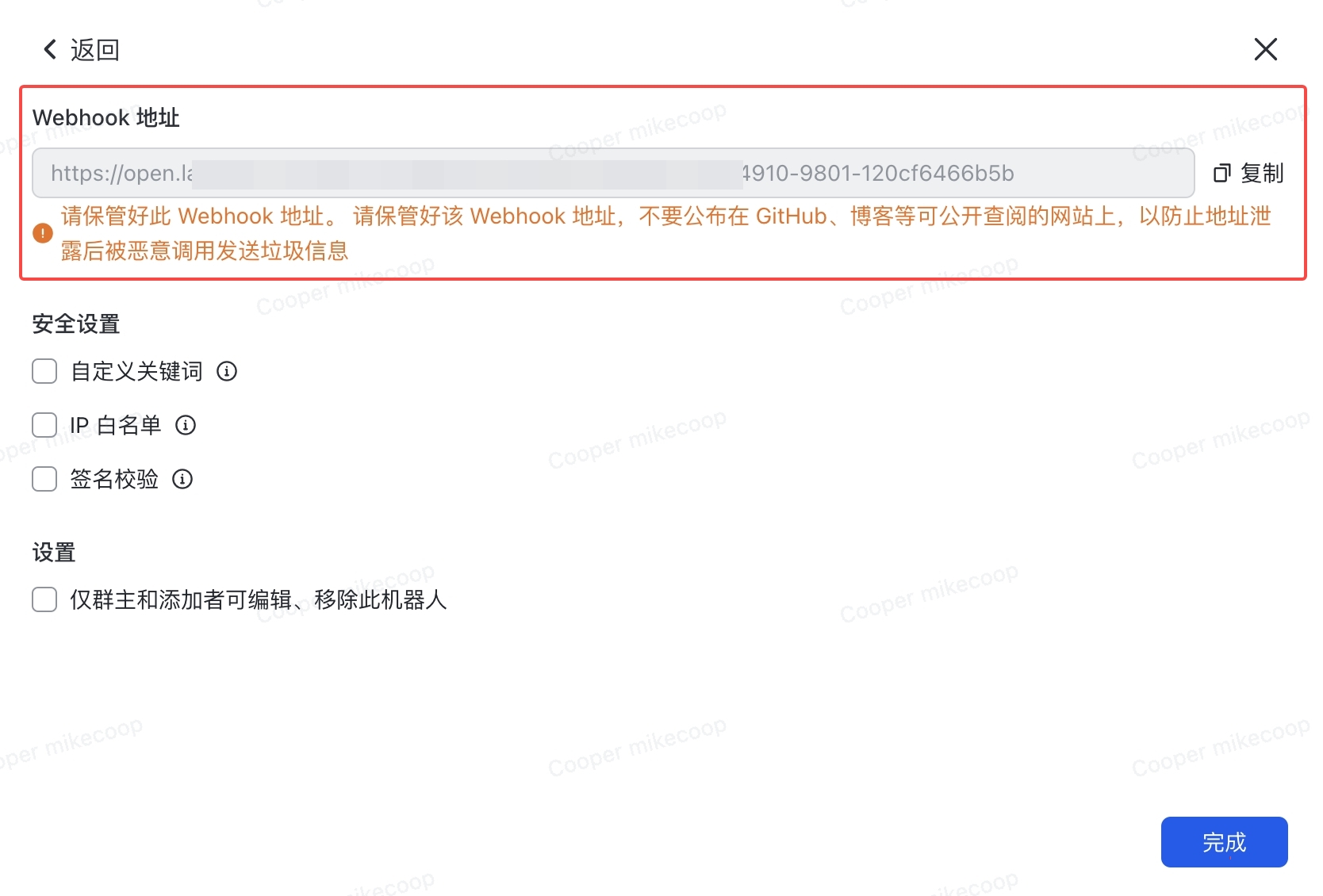
* 複製生成的機器人 Webhook 位址

  <figure><img src="/files/bQkXHlslmVqvplCDUZ9R" alt="" width="375"><figcaption></figcaption></figure>

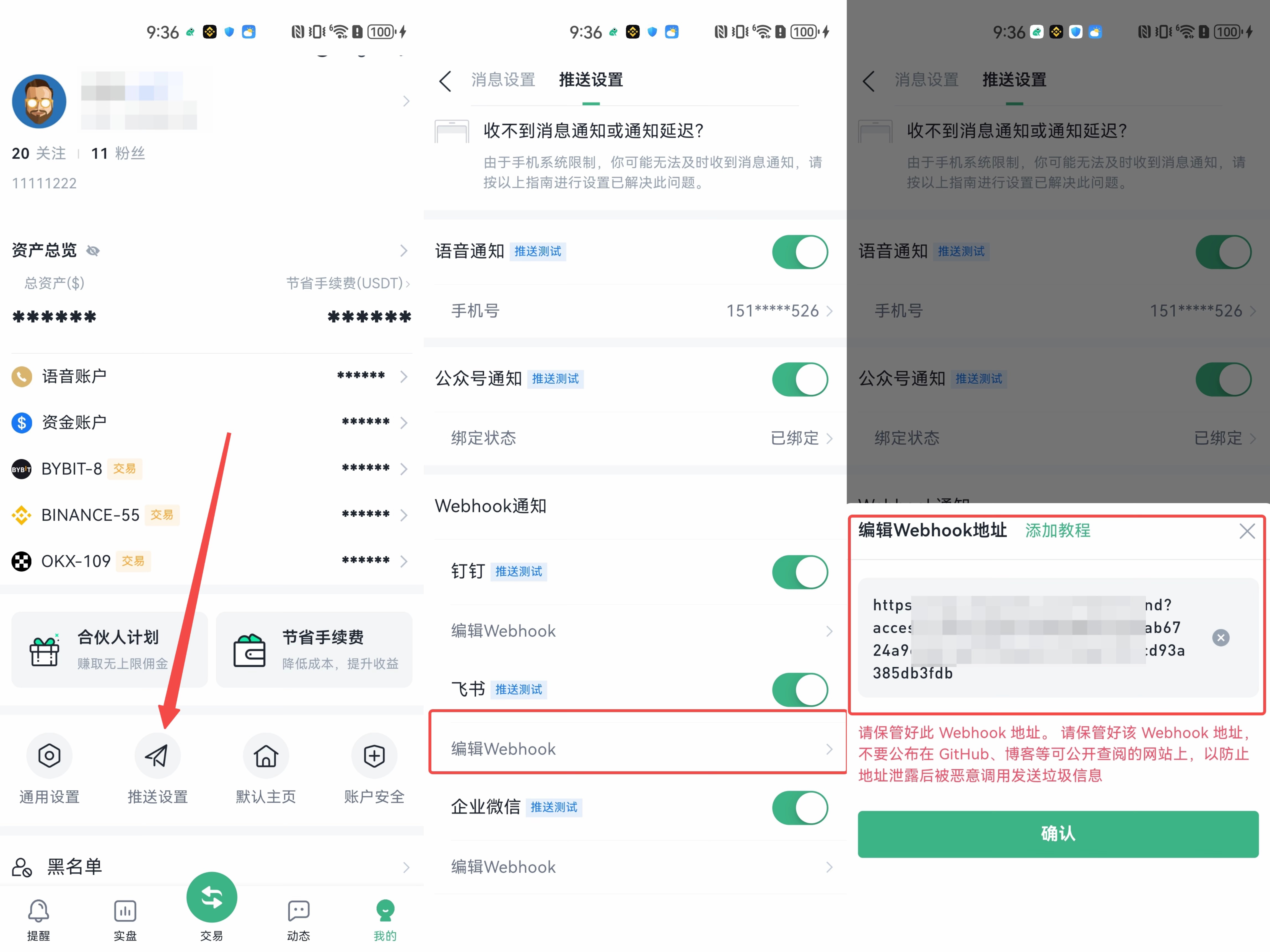
* 將 Webhook 位址複製到 BitFrog 推送設定中

  <figure><img src="/files/HiONHkUKdkHN2yJPicLJ" alt="" width="375"><figcaption></figcaption></figure>

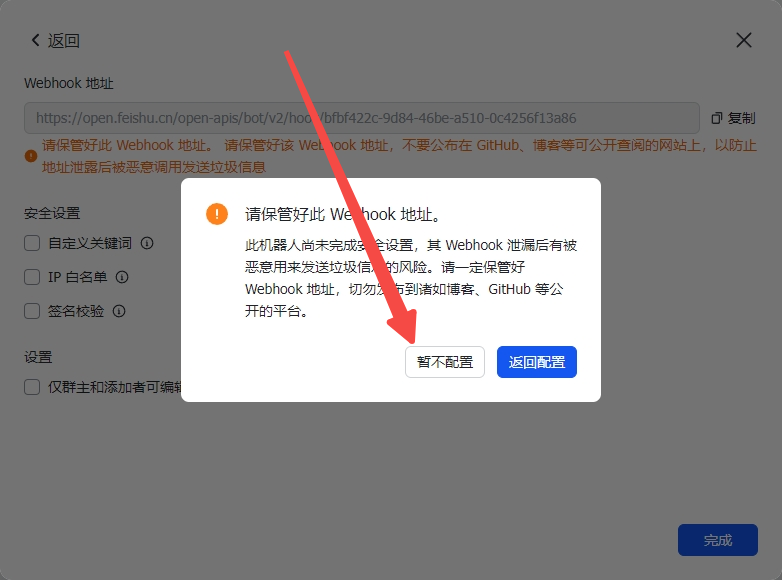
* 最後一步彈出對話框時，點擊「暫不設定」

  <figure><img src="/files/W56fa57iKUJaOMFZQgcq" alt="" width="375"><figcaption></figcaption></figure>

***

## 三、企業微信群 Webhook 建立

* 打開要新增機器人的群組，點擊右上角群組設定。

  <figure><img src="/files/YUKPcfSus9odGRRqoMu7" alt="" width="375"><figcaption></figcaption></figure>

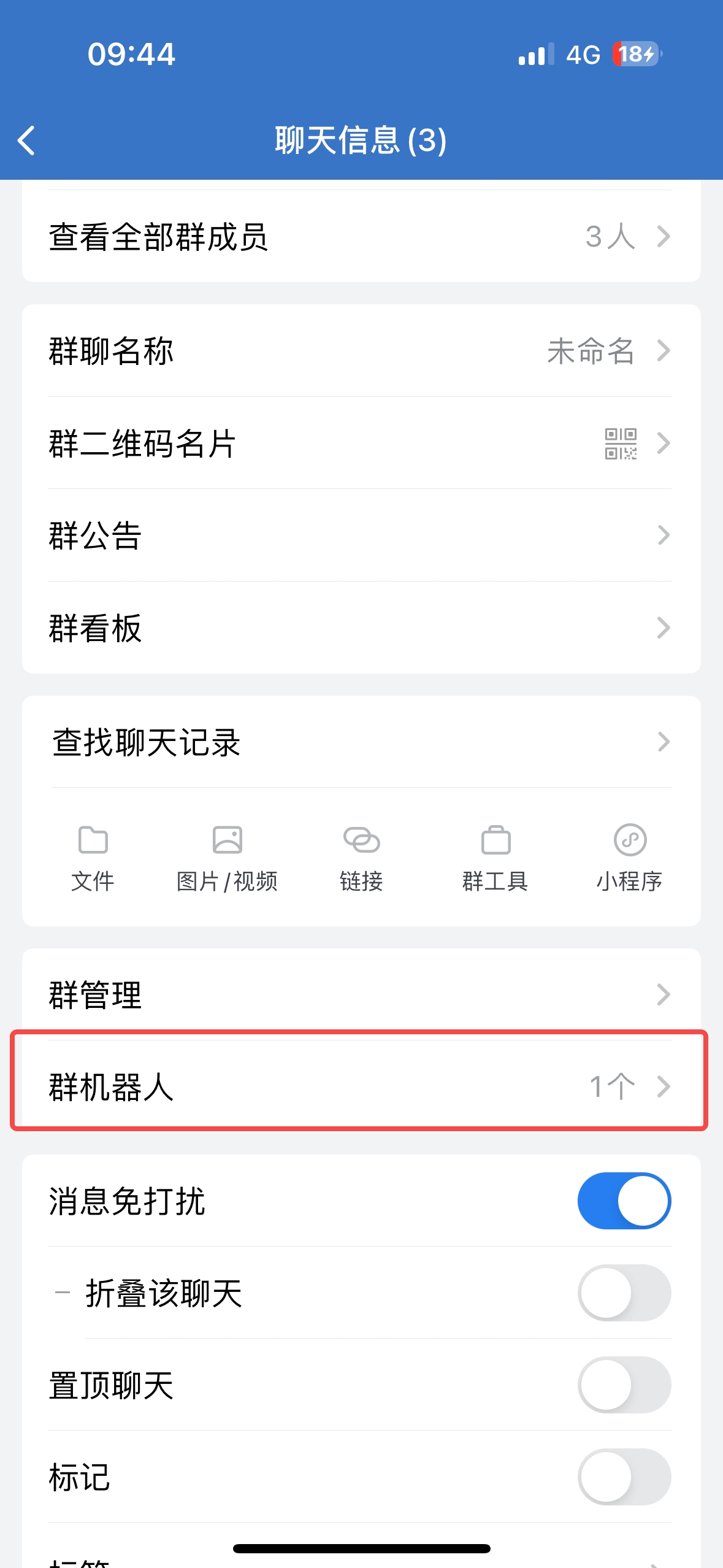
* 點擊「群機器人」

  <figure><img src="/files/6lE0UCDUU4GQ7r0R6T89" alt="" width="375"><figcaption></figcaption></figure>

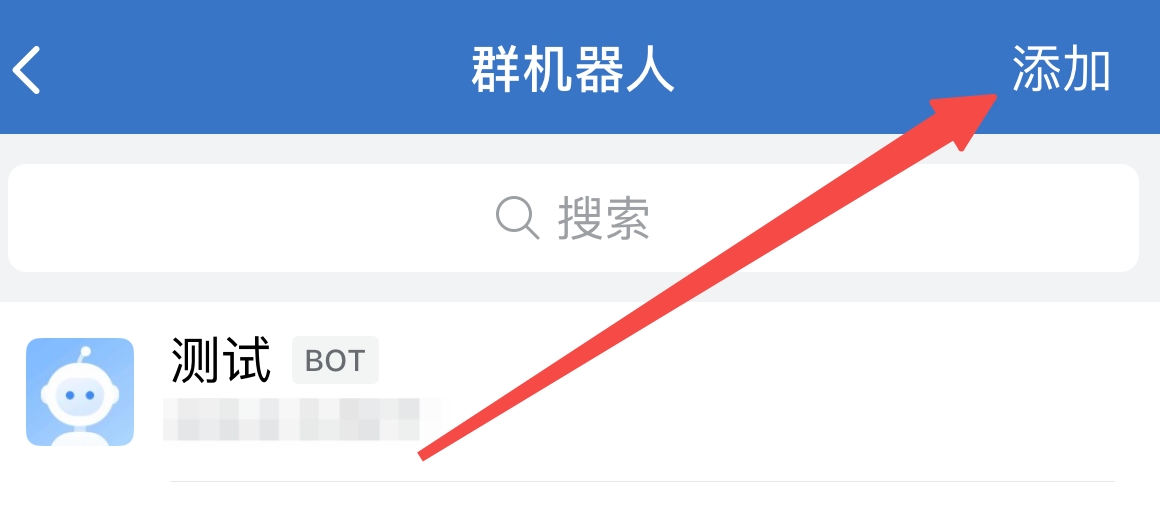
* 點擊「新增」

  <figure><img src="/files/9EmIJF6ZaEKJWakt73tQ" alt="" width="375"><figcaption></figcaption></figure>

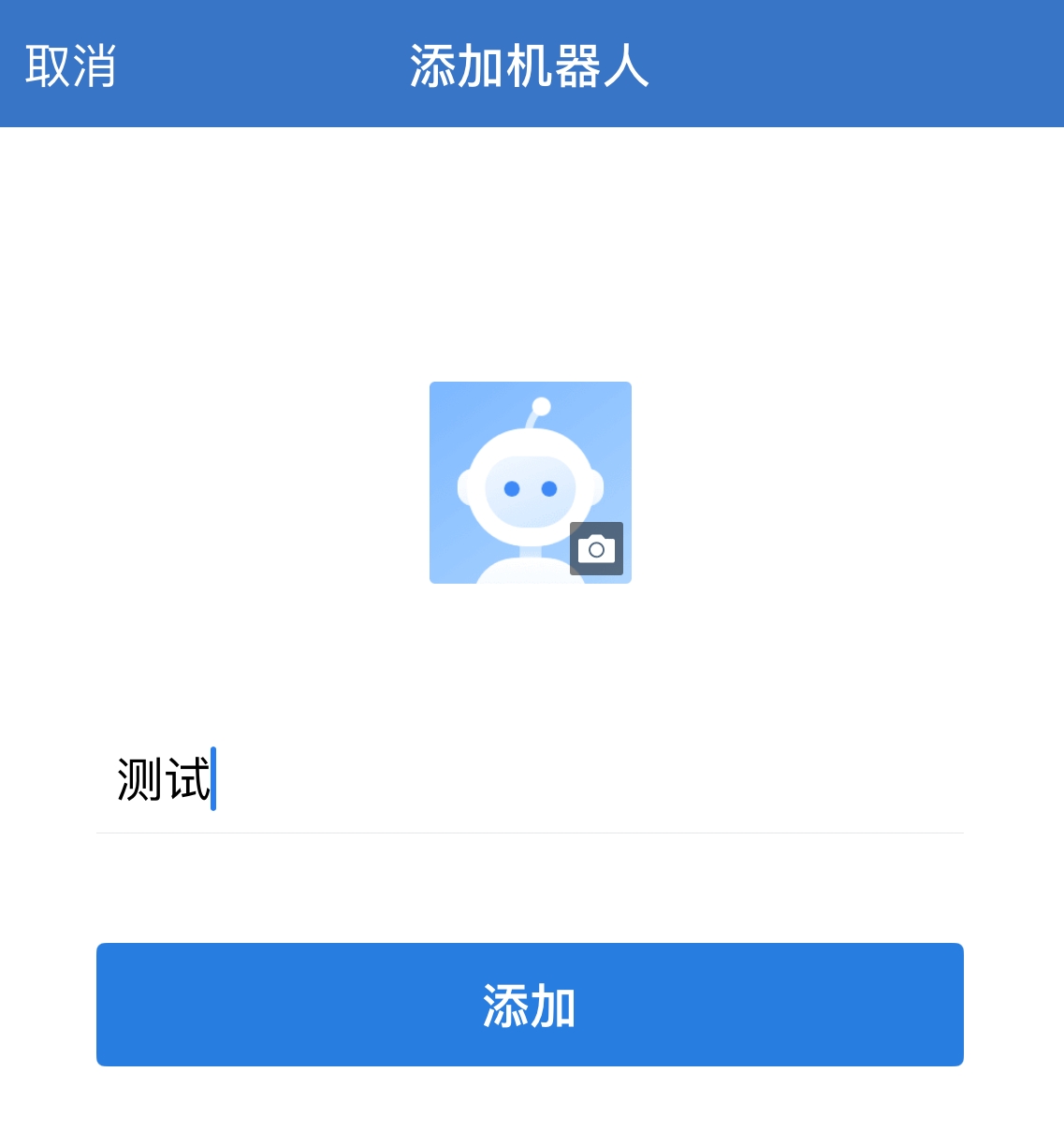
* 設定群組資訊

  <figure><img src="/files/BPoHBdEByIdumuDyOahW" alt="" width="375"><figcaption></figcaption></figure>

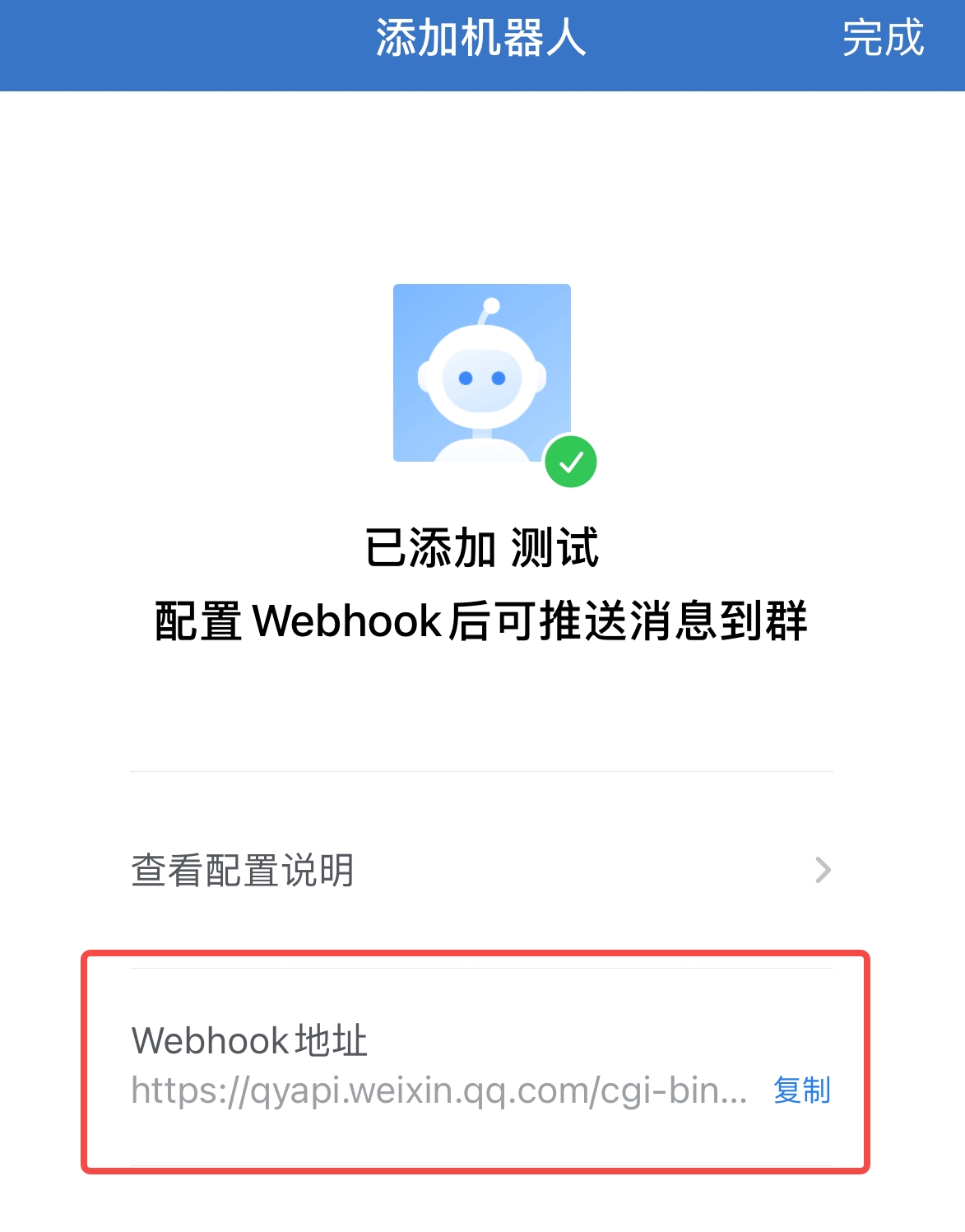
* 複製生成的機器人 Webhook 位址

  <figure><img src="/files/qEzOSXH6jyMIfawtJ9mt" alt="" width="375"><figcaption></figcaption></figure>

* 將 Webhook 位址複製到 BitFrog 推送設定中即可完成設定

  <figure><img src="/files/IDoz9NaxN3E4Rnnp9BAE" alt="" width="375"><figcaption></figcaption></figure>


---

# Agent Instructions: Querying This Documentation

If you need additional information that is not directly available in this page, you can query the documentation dynamically by asking a question.

Perform an HTTP GET request on the current page URL with the `ask` query parameter:

```
GET https://docs.bitfrog.io/zh-tw/jiao-yi-zhi-nan/ti-xing-gong-neng/webhook-tong-zhi-she-ding-jiao-xue.md?ask=<question>
```

The question should be specific, self-contained, and written in natural language.
The response will contain a direct answer to the question and relevant excerpts and sources from the documentation.

Use this mechanism when the answer is not explicitly present in the current page, you need clarification or additional context, or you want to retrieve related documentation sections.